
Private. By default.
Your keystrokes stay in this tab. Results only leave when you choose to export them.
A little peace of mind, one key at a time. Press any key to check your MacBook, Magic Keyboard or external keyboard. No download. No sign-up.
Fn / Globe, Touch ID, power and Eject / Lock are managed by macOS and excluded from your score. Layouts show classic physical positions; symbols and system keys vary by generation and input source. Some shortcuts may intercept keys. Test F1–F12 with Fn if needed.
A new-to-you Mac? A key that feels a little off? Get to know your keyboard in about a minute.
Choose your MacBook or Magic Keyboard layout, then click the test area.
Work through letters, numbers and both sets of modifier keys. Watch them light up.
Check untested keys, save your results, or dig deeper with a dedicated test.
From missed keys to double taps. Find the right Mac keyboard test for the job.
Meet every key. Check your MacBook or Magic Keyboard, one press at a time.
Take a closer look at browser input timing, down to the millisecond.
One press, two letters? Look for unexpected double-typing events.
Hold a few keys together. See which combinations make it through.
Keep a key held and explore gaps in its repeat event stream.
Find your flow. Measure your typing speed and accuracy.
How fast can you tap? Give your spacebar a little workout.
Inspect key codes, modifiers and input-method composition events.
Hold one key. Check the delay before repeat and its steady rhythm.
Explore event intervals and the rhythm of your keyboard input.
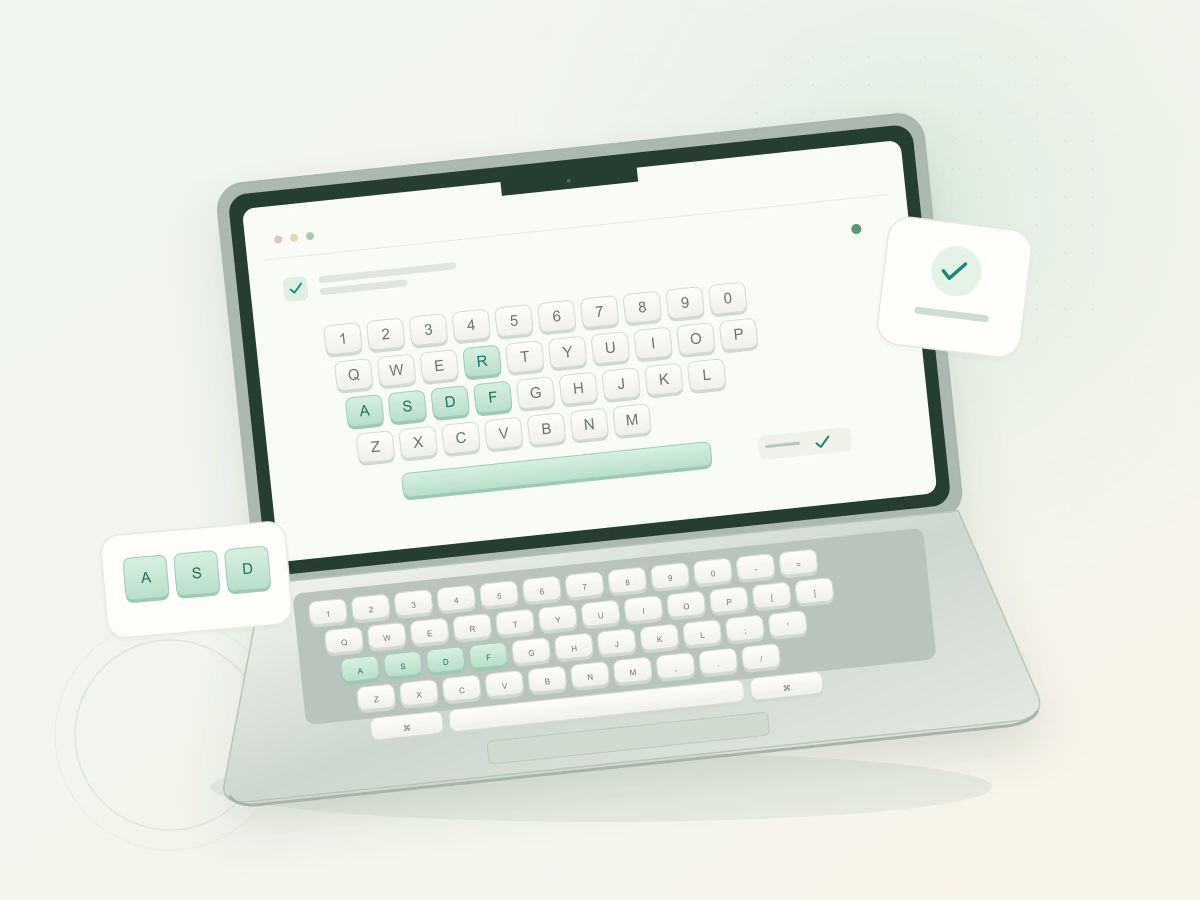
Checking a second-hand Mac or a key that sometimes misses a letter? Work across the keyboard one row at a time. The live map keeps tested keys marked, so you can see what you have checked and what still needs a press.
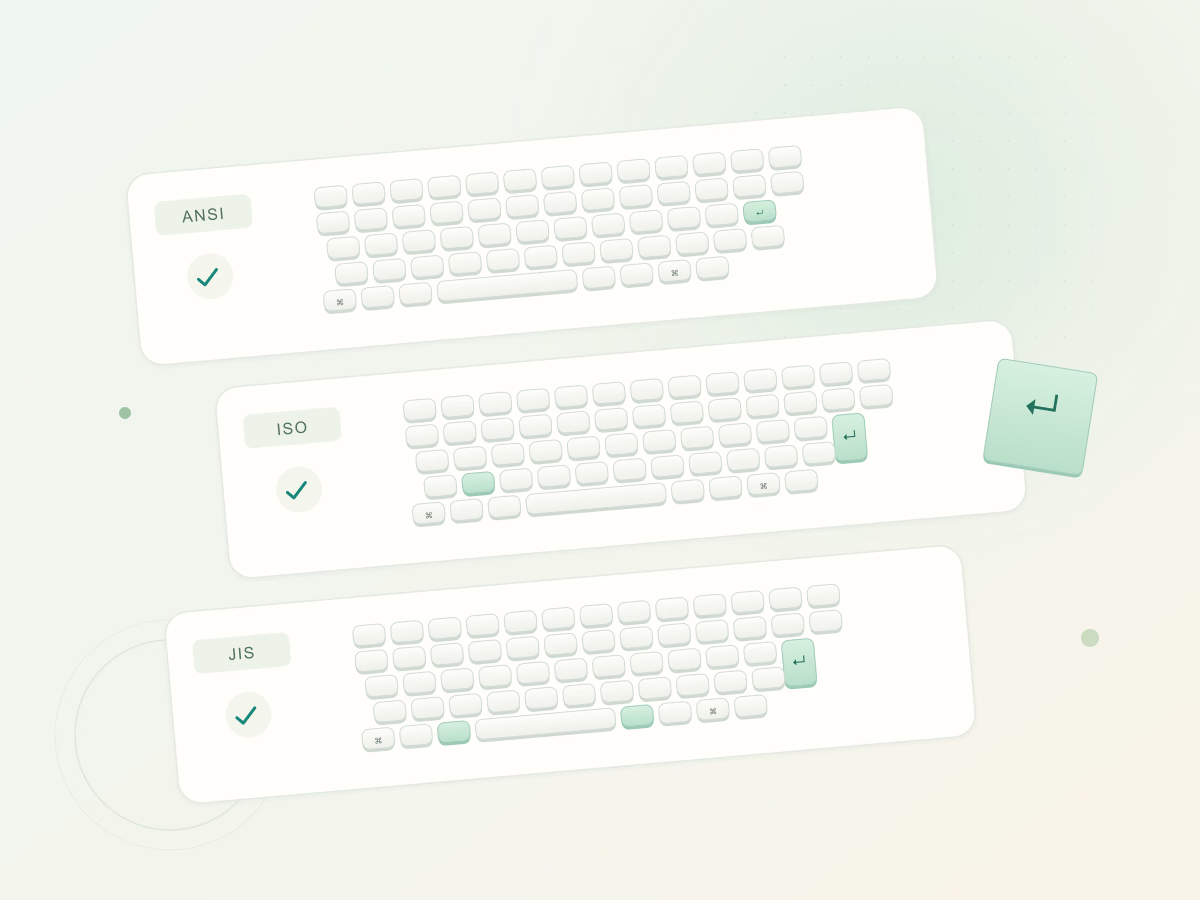
A tall Return key, an extra key beside Shift, or a Japanese spacebar: small layout differences matter. Choose from nine MacBook, compact Magic Keyboard and full-size Apple keyboard layouts to bring the visual test closer to the keyboard on your desk.
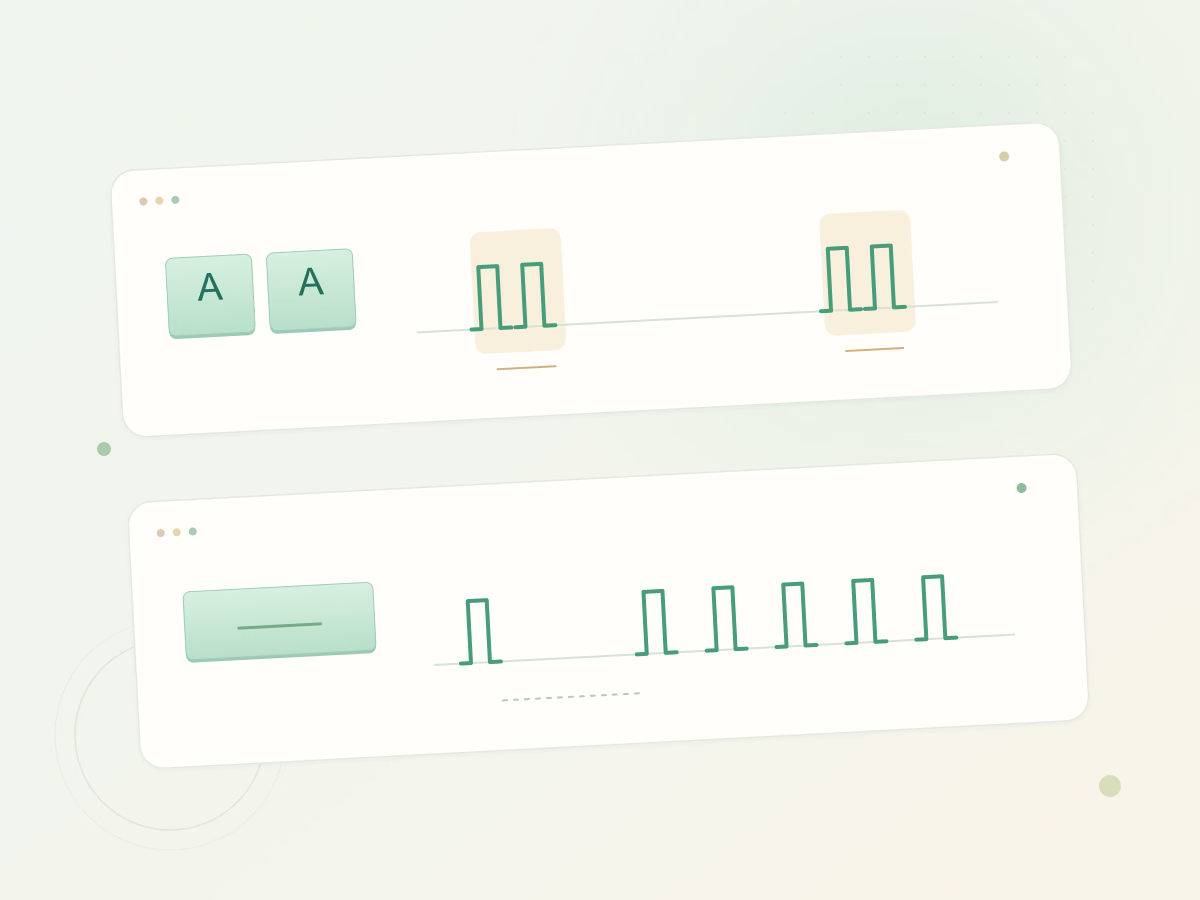
An extra character after a quick tap needs a different check from a letter that repeats while held. Use the chatter test for separate presses close together, then measure the initial delay and steady repeat rhythm with the key repeat test.
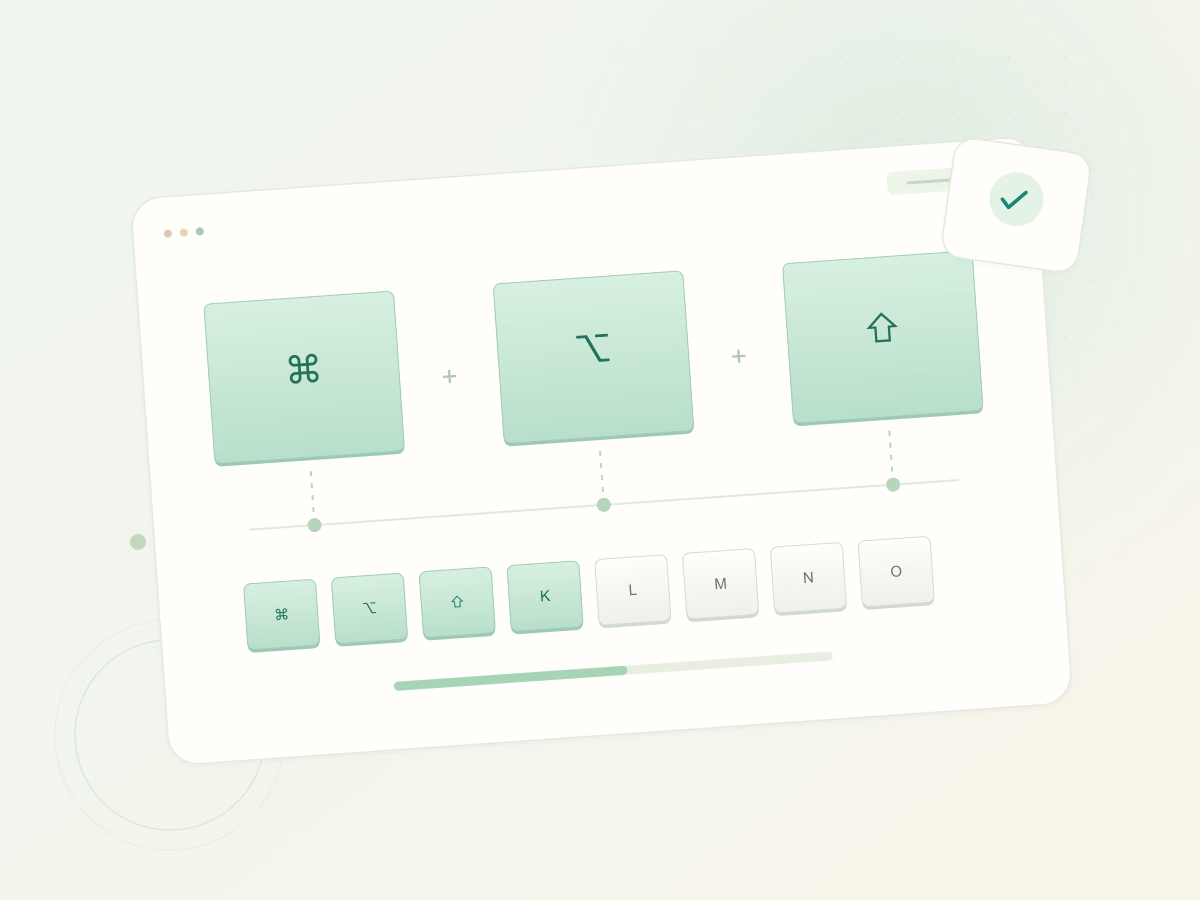
A single key can work while a combination behaves differently. Check left and right modifiers separately, then hold a few keys together. The rollover test shows which keys reach this browser at the same time and records your session’s highest count.
Once the keys feel right, try a short typing session. Practice an English passage or switch to Chinese and type with your usual input method. Read speed and accuracy together to understand your typing pace without losing sight of mistakes.
Your keystrokes stay in this tab. Results only leave when you choose to export them.
Familiar Mac layouts, left and right modifiers, and a place for every testable key.
Clear results and clear limits. We tell you what your browser sees, and what it can’t.
About the test, your keyboard, and that one key that won’t light up.
More answersOpen the tester, select the closest layout and press each physical key once. Look for unmarked keys and compare the event log. Repeat any unexpected result in a text editor and, when possible, with another keyboard.
Yes, when your browser receives keyboard input. Built-in, USB and Bluetooth keyboards use the same browser event interface; connection problems can affect what arrives.
macOS often handles those keys directly. Depending on your settings, try holding Fn / Globe with a function key. A missing browser event by itself does not mean the key is broken.
Key events are processed in this browser tab. Session results stay in memory unless you choose to download them. Display preferences may be saved in your browser.
Start with a repeatable symptom. A careful comparison across keys, applications and connections is more useful than one unexpected result.
Read the guideYour Mac’s top row can do two different jobs. The active behavior determines whether a website receives an F-key event or macOS handles a media action.
Read the guideCommand, Option, Control and Shift change how other keys behave. Know the common combinations before using a keyboard tester.
Read the guideTested in your browser. No accounts, no keystroke uploads, no fuss.